PDF to Word Converter – Convert PDF to Editable DOCX Instantly
Click to upload or drag & drop your PDF file
Supports .pdf (Max 20MB)
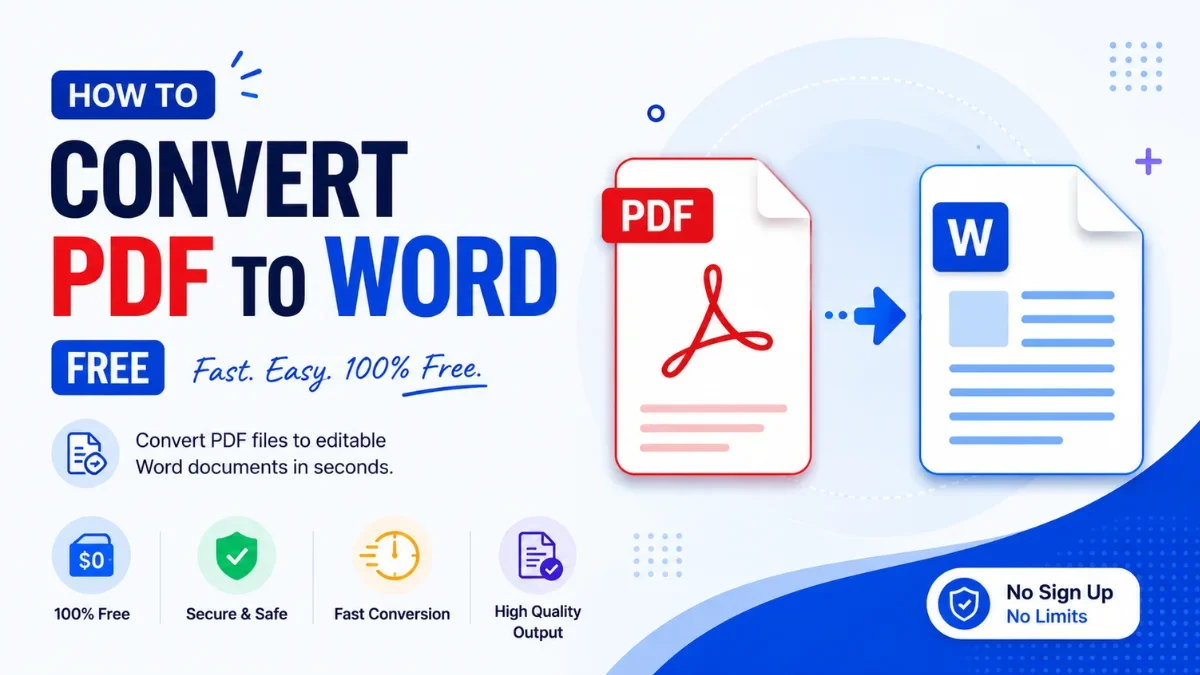
What is a PDF to Word Converter?
A PDF to Word Converter is an online tool that transforms a static PDF file into an editable Microsoft Word document (.docx). Once converted, you can open the file in Word, Google Docs, or any compatible editor to modify text, update formatting, add content, and track changes — all without retyping from scratch.
Why Convert PDF to Word?
Edit Content Directly
PDFs are designed for viewing, not editing. Converting to Word lets you update text, correct errors, change fonts, and restructure paragraphs with full editorial control.
Copy and Reuse Text
Instead of manually copying text from a PDF page by page, convert the file to DOCX and work with the full content immediately in your word processor.
Collaborate with Others
Word documents support tracked changes, comments, and version history — essential for team reviews and collaborative editing of reports, contracts, or proposals.
Apply Styles and Branding
Once in Word format, you can apply your company's style templates, change fonts and colors, add headers and footers, and produce a branded document from an existing PDF.
Works on All Devices
Calcon's converter works in any browser — no software installation needed. Use it on Windows, Mac, Android, or iOS without any app download.
How to Convert PDF to Word on Calcon
- Click the upload area or drag and drop your PDF file
- If your PDF is password-protected, enter the password when prompted
- Click the "Convert to DOCX" button
- Your Word file will be generated and downloaded automatically
- Open the downloaded .docx file in Microsoft Word or Google Docs
PDF to Word vs Other Conversion Methods
- Adobe Acrobat: Best quality but requires a paid subscription for export features
- Google Docs: Upload PDF to Google Drive and open as Docs — requires a Google account and uploads your file to their servers
- Microsoft Word (Open PDF): Works well for simple PDFs but requires Word installed on your device
- Calcon PDF to Word: Free, no account, secure server-side processing, no file storage, works on any device
Limitations to Know
This tool extracts text from text-based PDFs and organises it into a clean DOCX. Complex multi-column layouts, embedded graphics, tables, and scanned/image PDFs may not convert with full fidelity. For scanned documents, use our Image to Text (OCR) tool, which reads the text out of scanned pages and photos. For text-heavy reports, contracts, and forms, conversion quality is excellent.
Frequently Asked Questions
How do I convert a PDF to Word for free?
Is my PDF safe when I convert it?
Can I convert a password-protected PDF?
Will my formatting be preserved after conversion?
Can I convert a scanned PDF to Word?
Is there a file size limit?
Can I convert multiple PDFs at once?
What does the downloaded file look like?
Related Blog Posts
Related PDF Tools
Edit PDF Online
Fill forms, add text, whiteout and signatures to any PDF.
Excel Password Remover
Unlock password-protected .xlsx Excel files instantly.
Excel to PDF Converter
Convert XLSX to PDF instantly — fast and secure.
JPG to PDF Converter
Convert images to PDF in one click.
Merge PDF
Combine multiple PDFs into one file instantly.
PDF Annotator
Highlight, draw, and comment on any PDF in your browser.
PDF Compressor
Reduce PDF file size online free.
PDF Page Remover
Delete pages from PDF by number or range.
PDF Password Protector
Password protect and encrypt PDF online free.
PDF Password Remover
Unlock password-protected PDFs instantly.
Get new tools & guides
Occasional updates, no spam.