Excel to PDF Converter – Convert XLSX to PDF Instantly
Click to upload or drag & drop your Excel file
Supports .xlsx, .xls, .ods, .csv (Max 20MB)
What is an Excel to PDF Converter?
An Excel to PDF Converter transforms Microsoft Excel spreadsheets (.xls or .xlsx) into PDF documents. The PDF preserves your tables, cell formatting, column widths, fonts, colours, and sheet structure — making it the ideal format for sharing, printing, or archiving your spreadsheet data without requiring the recipient to have Excel installed.
Why Convert Excel to PDF?
Share Without Requiring Excel
PDF files open on every device and operating system without needing Microsoft Excel, Google Sheets, or any spreadsheet software. Share financial reports, invoices, budgets, and data tables with anyone, instantly.
Lock Formatting for Print
Excel files can look different on different screens, printers, and devices depending on software versions and display settings. PDF locks your layout exactly as designed — every column width, row height, and border prints exactly as intended.
Prevent Accidental Edits
When you share an Excel file, recipients can accidentally or intentionally modify your data. A PDF cannot be edited without special tools, keeping your original data and calculations intact.
Professional Document Sharing
PDFs are the standard format for professional document exchange — invoices, financial statements, data reports, and audit sheets are always shared as PDFs, not raw spreadsheet files.
Archiving and Compliance
PDF is the preferred format for long-term document storage and regulatory compliance. Converting Excel reports to PDF ensures they remain readable for years, regardless of future software changes.
How to Convert Excel to PDF on Calcon
- Click the upload area or drag and drop your .xls or .xlsx file
- Click the "Convert to PDF" button
- Wait a few seconds while the server processes your spreadsheet
- Click "Download PDF" to save the converted file to your device
Excel to PDF vs Other Conversion Methods
- Microsoft Excel (Export as PDF): Best quality but requires Excel installed — not available on phones or without a licence
- Google Sheets (Download as PDF): Requires uploading your file to Google's servers and a Google account
- Print to PDF: Works for single sheets but often cuts off columns and loses formatting
- Calcon Excel to PDF: Free, no account, preserves full formatting including borders, merged cells, and multi-sheet workbooks
Frequently Asked Questions
How do I convert Excel to PDF for free?
Will my Excel formatting be preserved in the PDF?
What spreadsheet formats are supported?
Can I convert a workbook with multiple sheets?
Is there a file size limit?
Is my Excel file safe when converting?
Can I convert Excel to PDF on my phone?
How long does Excel to PDF conversion take?
Related Blog Posts
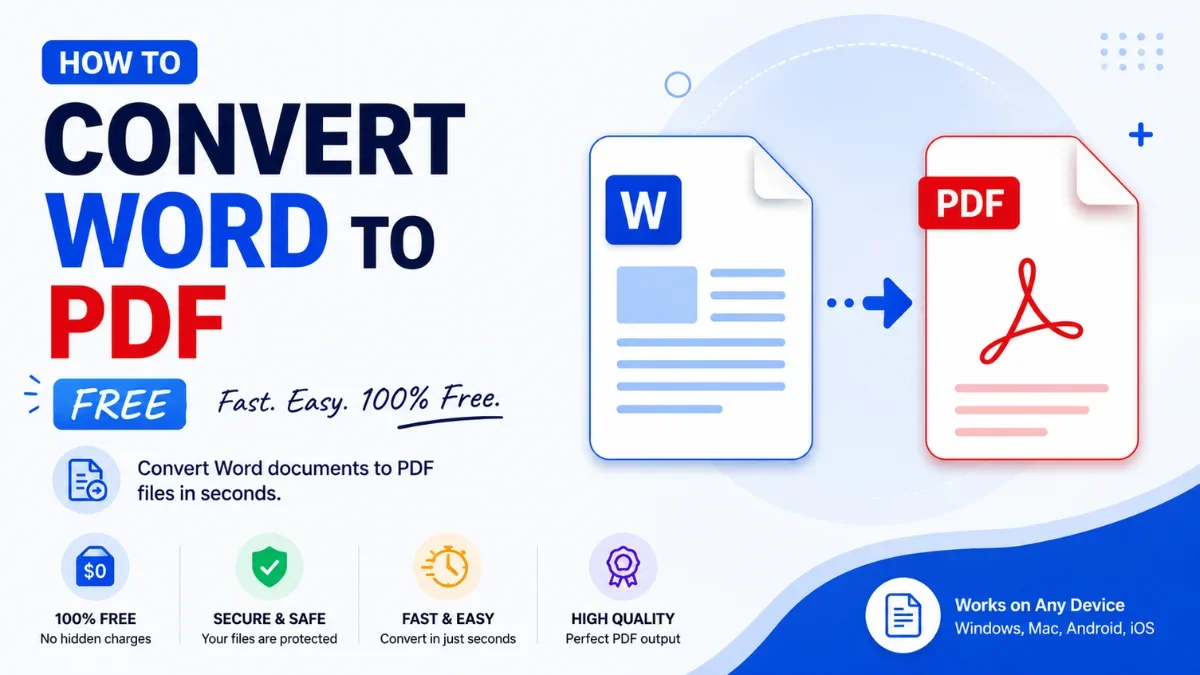
Related PDF Tools
Edit PDF Online
Fill forms, add text, whiteout and signatures to any PDF.
Excel Password Remover
Unlock password-protected .xlsx Excel files instantly.
JPG to PDF Converter
Convert images to PDF in one click.
Merge PDF
Combine multiple PDFs into one file instantly.
PDF Annotator
Highlight, draw, and comment on any PDF in your browser.
PDF Compressor
Reduce PDF file size online free.
PDF Page Remover
Delete pages from PDF by number or range.
PDF Password Protector
Password protect and encrypt PDF online free.
PDF Password Remover
Unlock password-protected PDFs instantly.
PDF to Excel Converter
Convert PDF to XLSX instantly — fast and secure.
Get new tools & guides
Occasional updates, no spam.