
How to Compress PDF Files Online Without Losing Quality (2026 Guide)
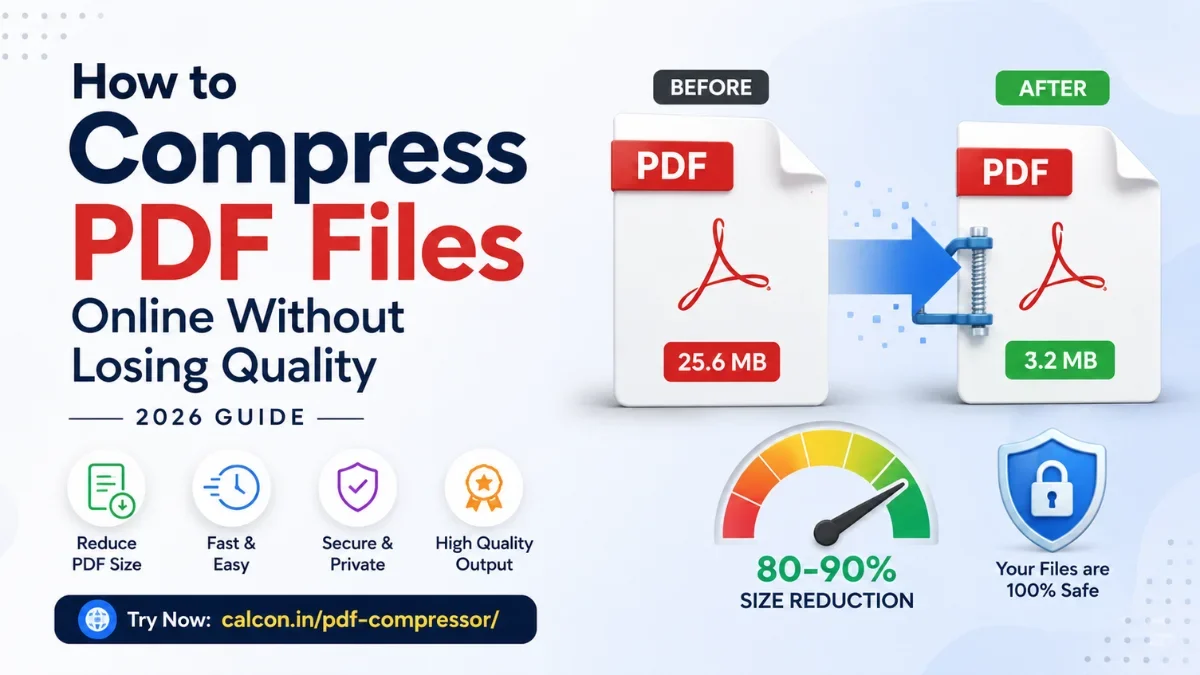
A large PDF is a small problem with a big footprint. It bounces back from email, gets rejected by a job portal, or stalls on a slow connection right when you need it. The fix is rarely to redo the document — it is to compress it sensibly, so the file gets smaller while the content stays clear and professional.
This guide explains what actually happens when you compress a PDF, which setting to choose for which kind of document (the part most guides skip), and how to hit specific size limits like 500 KB or 1 MB. You can compress any file in your browser with the free Calcon PDF Compressor.
Why PDFs Become Large in the First Place
Knowing the cause tells you which compression setting will help most. Size usually comes from one of these:
• High-resolution images — phone scans and screenshots are the biggest offenders, often making up 90% of a file.
• Embedded fonts — custom or multiple typefaces add weight, especially in design-heavy files.
• Graphics and layout — brochures, resumes, and catalogs carry vector art and photos.
• Redundant structure and metadata — hidden data and unoptimised internals quietly inflate the file.
This matters because image-heavy and text-heavy PDFs respond very differently to compression — and the right tool treats them differently.
What “Without Losing Quality” Really Means
It helps to be honest here, because it builds trust with your reader. There are two kinds of compression:
• Lossless — strips redundant data and optimises structure with no visible change. Best for text documents, where savings come from the file's internals, not the content.
• Visually lossless — re-compresses images just enough that the eye cannot tell, but the file shrinks a lot. Best for scans and photo-heavy PDFs.
So “no quality loss” is realistic for text PDFs and very close to it for scanned ones at moderate settings. The trade-off only becomes visible when you push compression hard to meet a tight size limit.
Which Compression Setting Should You Use?
This is the decision most people get wrong. Match the setting to your document type:
Document type | Recommended | Why |
|---|---|---|
Text reports, contracts, notes | Low | Text stays crisp; savings come from structure, not images. |
Resume / CV | Medium | Balances a clean look with the upload limits job sites enforce. |
Scanned documents, ID proofs | Medium–High | Images dominate the size, so this is where the real shrinking happens. |
Brochures, image-heavy PDFs | Medium | Keeps visuals sharp while still cutting weight noticeably. |
Hitting a hard limit (e.g. under 500 KB) | High | Prioritises size; expect slight softening on images, text stays readable. |
Rule of thumb: start one level lighter than you think you need. If the file is still too big, step up. You rarely need maximum compression for a text document.
How to Compress a PDF Online (Step by Step)
1. Open the tool. Go to the Calcon PDF Compressor.
2. Upload your PDF — drag and drop, or browse from your phone or computer.
3. Choose a compression level using the table above as your guide.
4. Click Compress and let the tool process the file.
5. Download the optimised PDF and check it before sending.
No installation, no account, and it works the same on mobile and desktop.
How the Calcon Compressor Keeps Quality High
Not all compressors are equal. A naive tool applies one method to everything and either bloats text files or wrecks images. Calcon automatically detects whether your PDF is image-heavy or text-heavy and applies the method best suited to it — so a scanned document and a text contract are each handled the right way.
It also includes a safeguard: if compression would somehow make a file larger (which can happen with already-optimised PDFs), it returns your original instead of a bigger one. Your file is processed securely and is not kept after you download it.
How to Hit a Specific Size Limit
Indian government portals, university forms, and job sites are strict about size. Common targets and how to meet them:
• Under 200–500 KB (SSC, UPSC, university uploads): use High compression; for scans, this is usually achievable in one pass.
• Under 1 MB (most job applications): Medium is often enough; step to High only if needed.
• Under 2 MB (general uploads): Low to Medium will comfortably get you there while keeping quality high.
For reference, Gmail caps attachments at 25 MB, so even light compression usually clears email. The tight limits are almost always on official upload forms, not email.
Keep PDFs Small From the Start
• Scan at 300 DPI for print or 150 DPI for screen — anything higher just adds weight.
• Resize large images before placing them in a document.
• Remove blank or duplicate pages before exporting.
• Export to PDF with a “smallest file size” or “web” option when your software offers one.
Troubleshooting Common Problems
The PDF is still too large
Step up one compression level. If it is a scan, the images are the cause — Medium-High targets them directly.
Text looks blurry after compression
You compressed too aggressively. Re-run the original at Low or Medium; text PDFs almost never need High.
A scanned document lost clarity
Scans are mostly images, so they are the most sensitive. Use Medium for a readable balance, and only go higher if a size limit forces it.
Frequently Asked Questions
Is PDF compression safe?
Yes, with a trusted tool. Calcon processes your file securely and does not retain it after download. Avoid unknown sites for sensitive documents.
Will my PDF lose quality?
Text PDFs stay sharp. Scanned and image-heavy PDFs may soften slightly at high settings, but Low and Medium keep the change invisible in most cases.
Can I compress a PDF for free?
Yes. The Calcon PDF Compressor is free, with no signup or watermark.
Does it work on a phone?
Yes. It runs in the browser on phones, tablets, and computers alike.
Why do portals demand such small files?
Upload limits protect server storage and keep their systems fast. Compression is the simplest way to meet them without changing your content.
The Bottom Line
Compressing a PDF well is about matching the setting to the file: light for text, moderate for images, and heavy only when a strict limit demands it. Do that, and you get a smaller file that still looks professional. When you are ready, compress yours in seconds with the free Calcon PDF Compressor.
Related Tools
Get new tools & guides
Occasional updates, no spam.
Latest Posts

PPF vs SIP: Where Should You Put Your Money?

SCSS vs CSS: What's the Difference & How to Compile SCSS to CSS
PPF vs Mutual Fund SIP: Which is Better for Long-Term Wealth Creation?
How to Resize Photo & Signature for Online Exam Forms (Size + KB Guide)
How to Resize Image Dimensions Online (Width, Height & Aspect Ratio)